

NoteIf you are using Tyk Classic APIs, please see this section.
Configure versioning
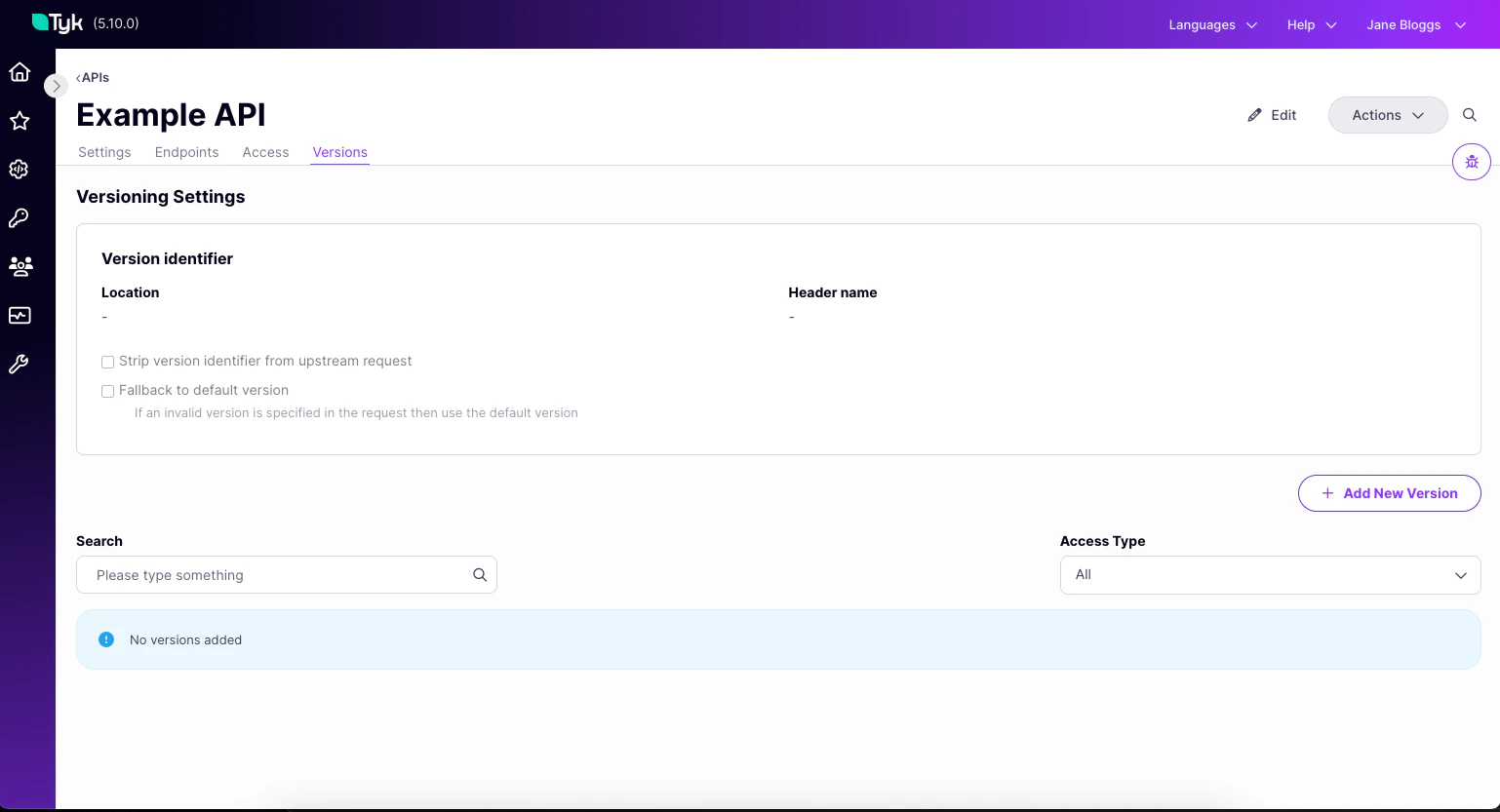
From Tyk 5.10, you can pre-configure the versioning metadata for an API before you’ve created the first child API.-
Choose the API for which you want to create a new version (this can be an unversioned or versioned API) and go to the Versions tab
-
Select Edit and you can pre-fill the following metadata:
- Version identifier location
- Version identifier name (or pattern for URL versioning)
- Version name for the base API
- Stripping identifier from upstream request
- Default fallback behaviour
- Click Save API
Create a new child version
You can easily add a new version in the Tyk Dashboard’s API Designer by following these steps.- Choose the API for which you want to create a new version (this can be an unversioned or versioned API) and go to the Versions tab
-
Select Add New Version to open the version creation wizard.
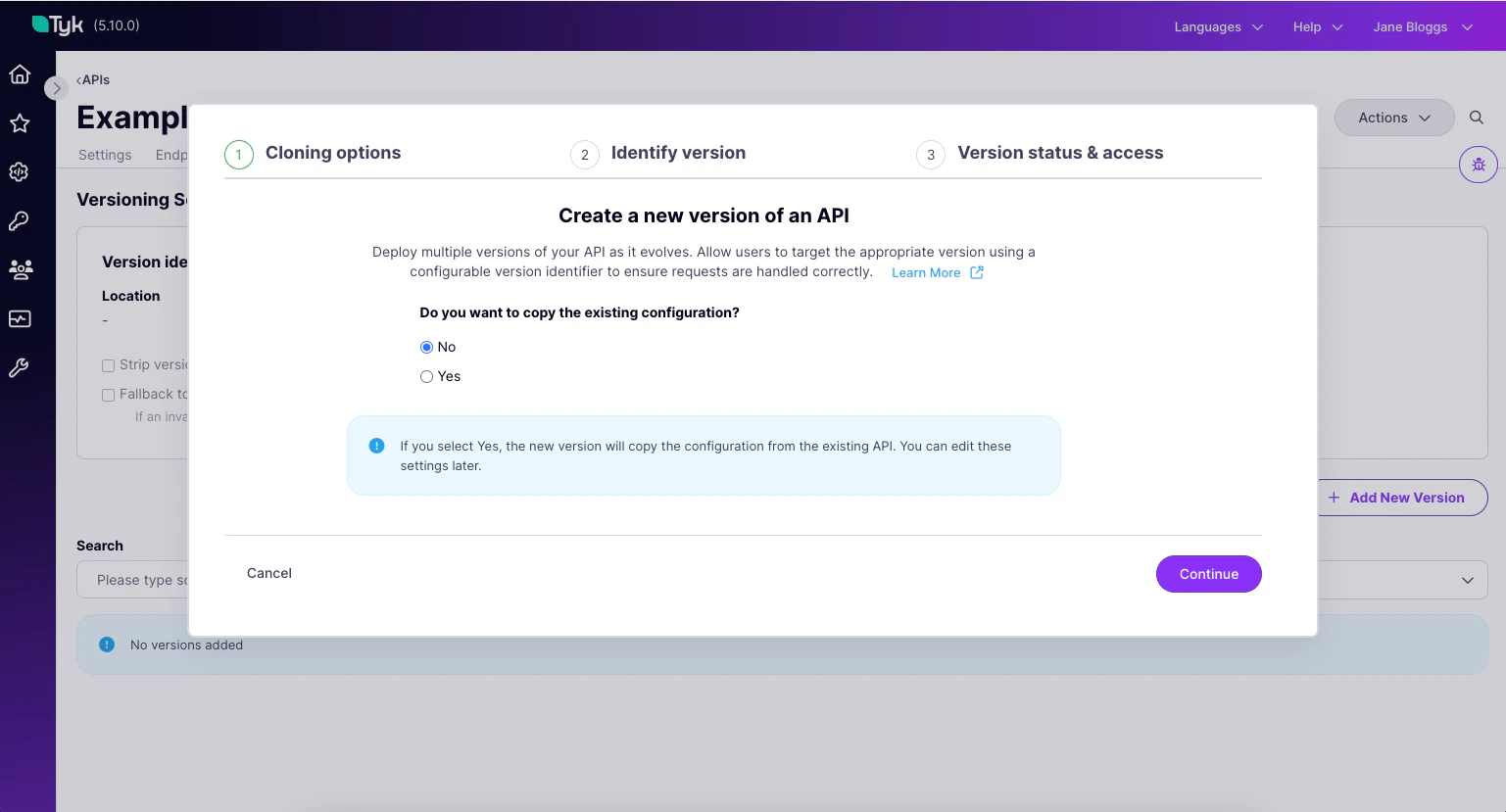
-
If you have not already configured the versioning for this API you will prompted to complete this information.
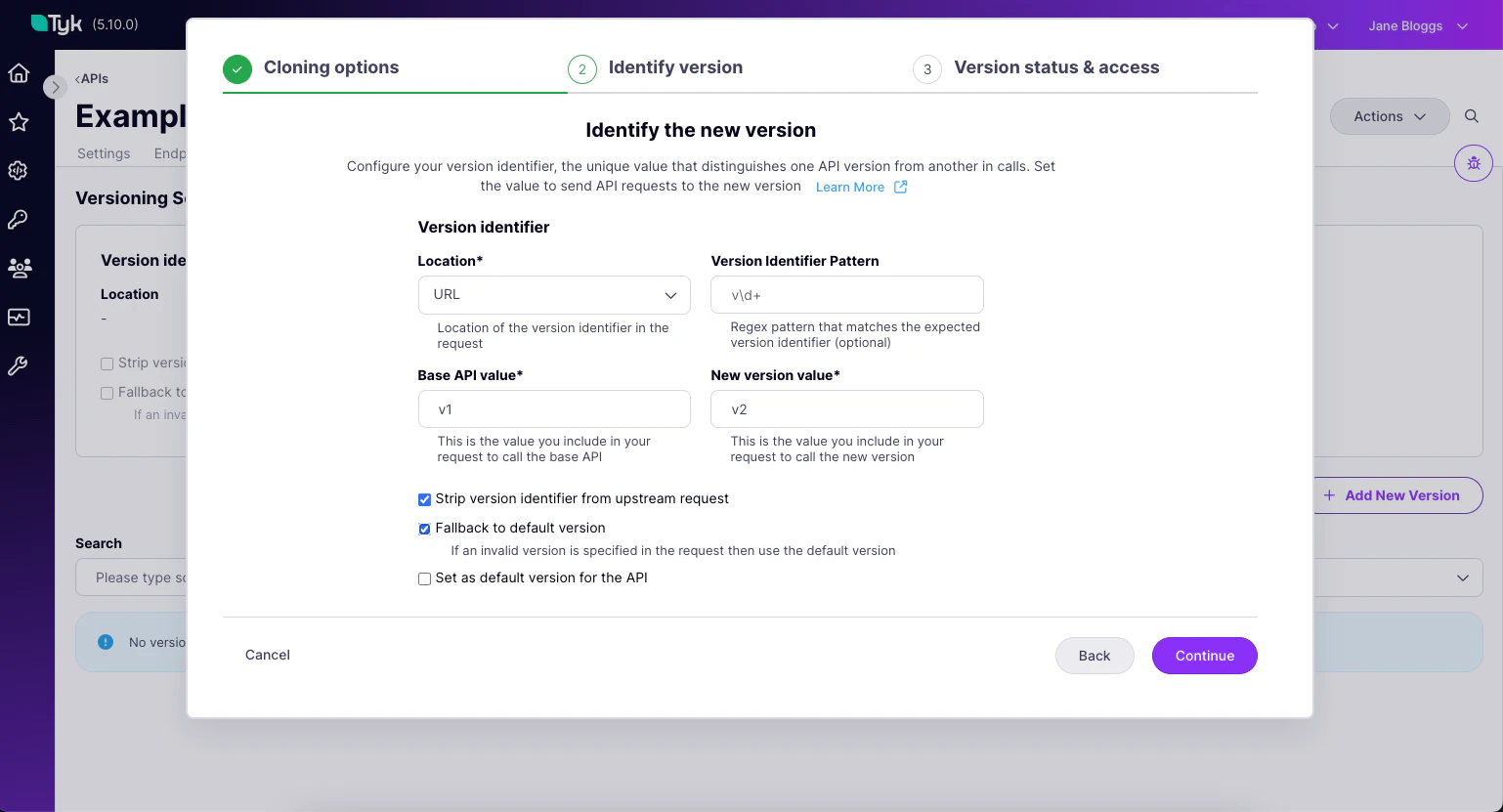
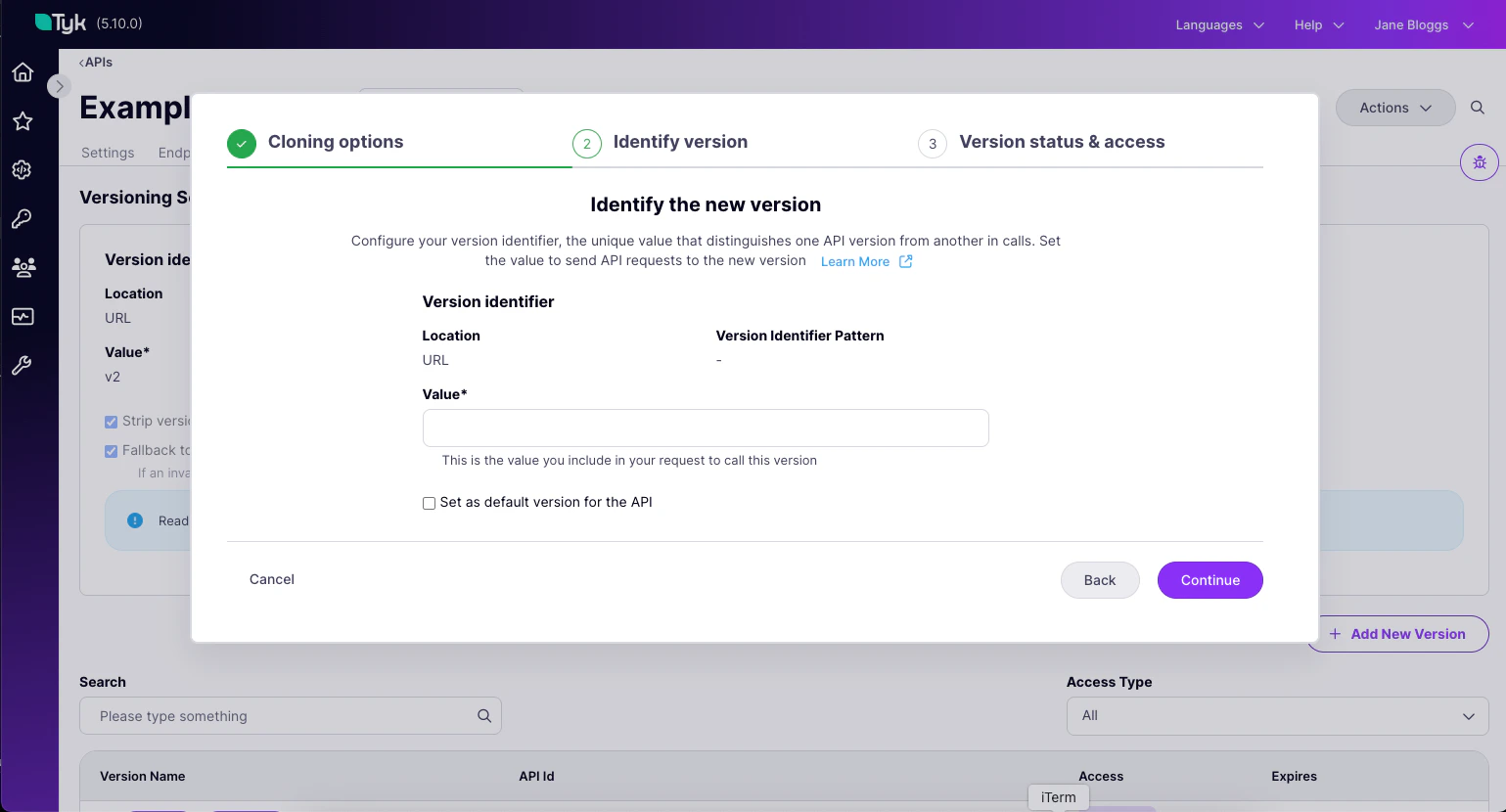
-
The final step is to choose whether to publish your new version straight away or to keep it in draft until you’ve completed configuring it. You can also optionally choose to make the API externally accessible, which will allow direct calls to the child API not just via the base API.
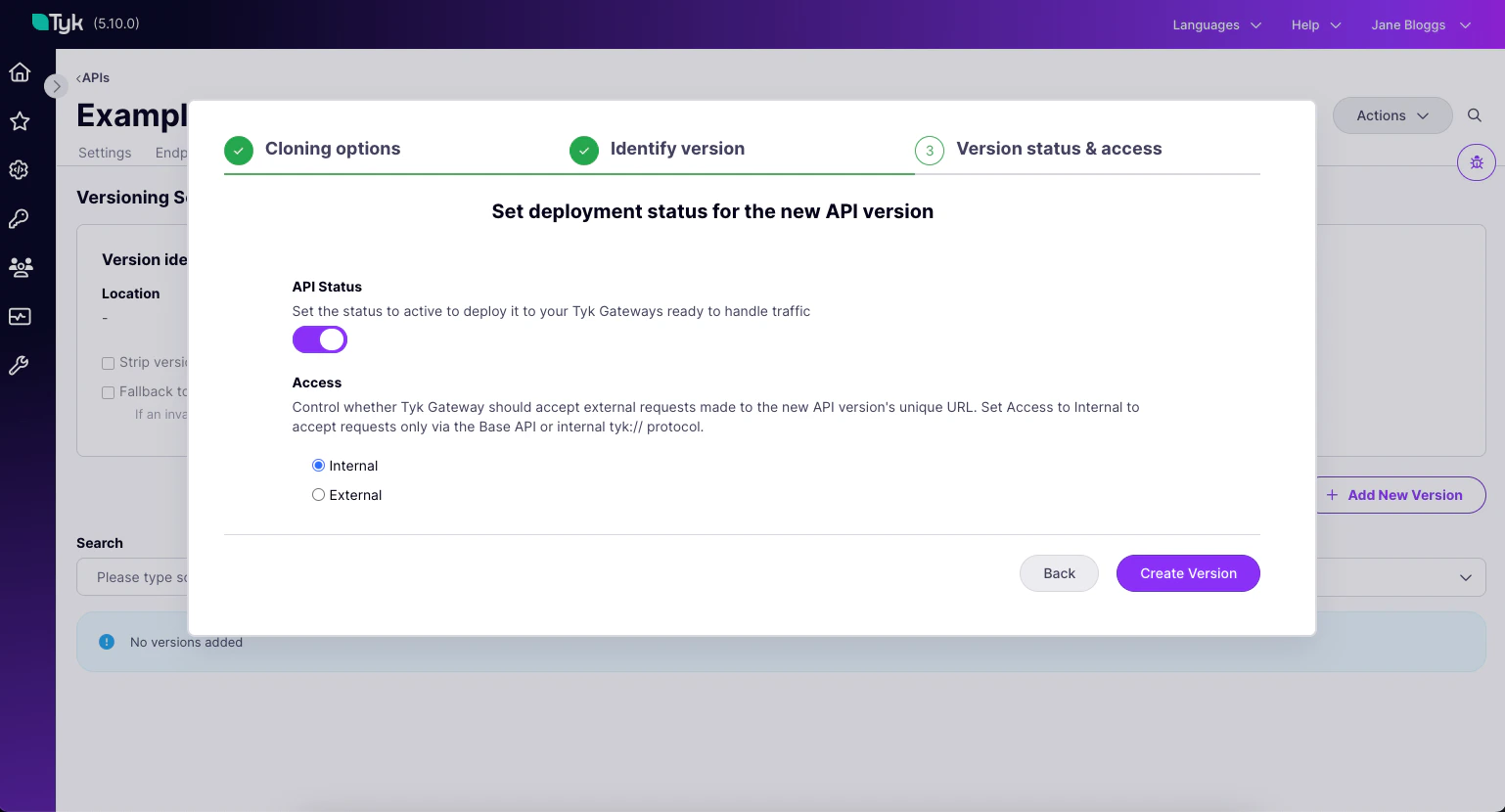
- Select Create Version to complete the wizard. Your new API will be created and you can now adjust the configuration as required.
Working with versioned APIs
When you have a versioned API the base API will appear in the Created APIs list, with an expansion icon that you can select to reveal the versions.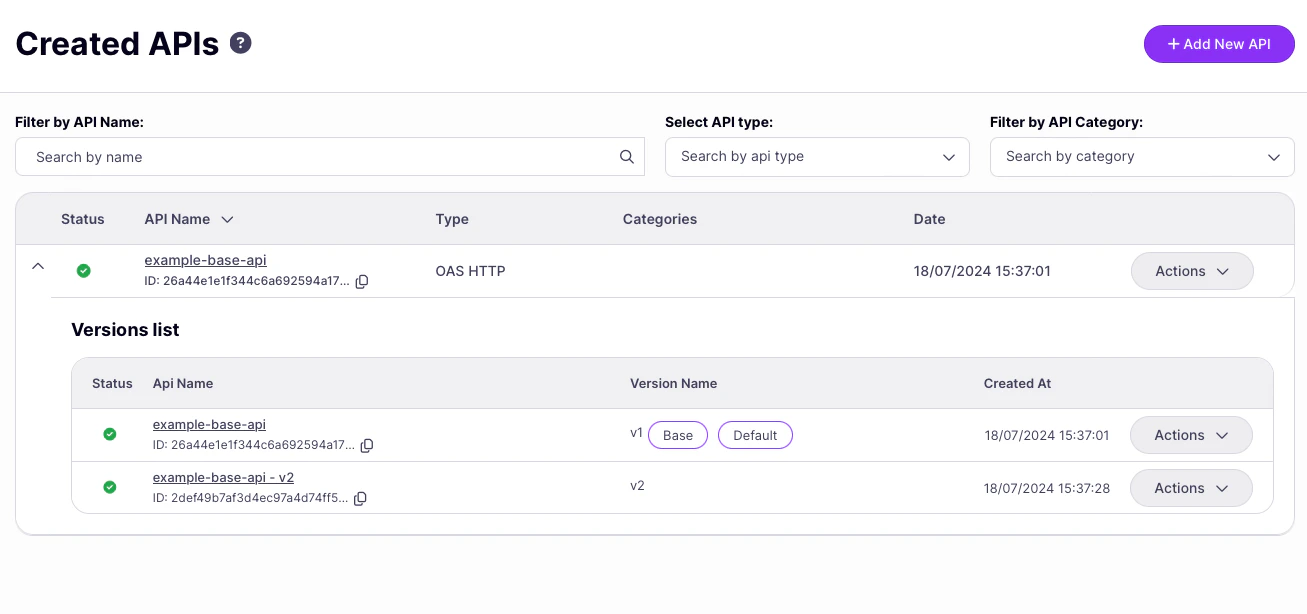
Switch between API versions
When you are in the API Designer for a versioned API, you can switch between versions using the drop-down next to the API name.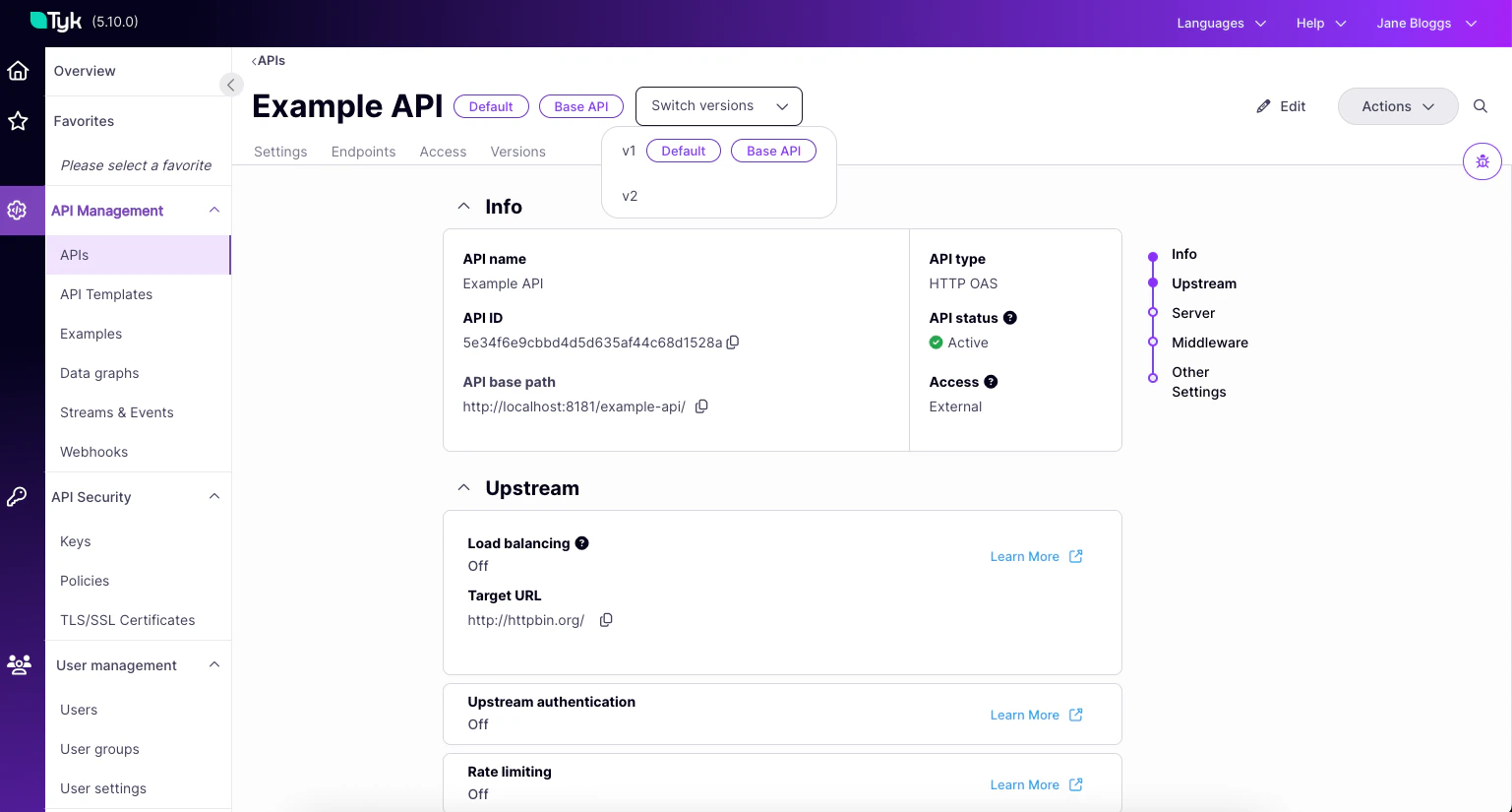
Manage Version Metadata
You can manage all versions of your API from the Versions tab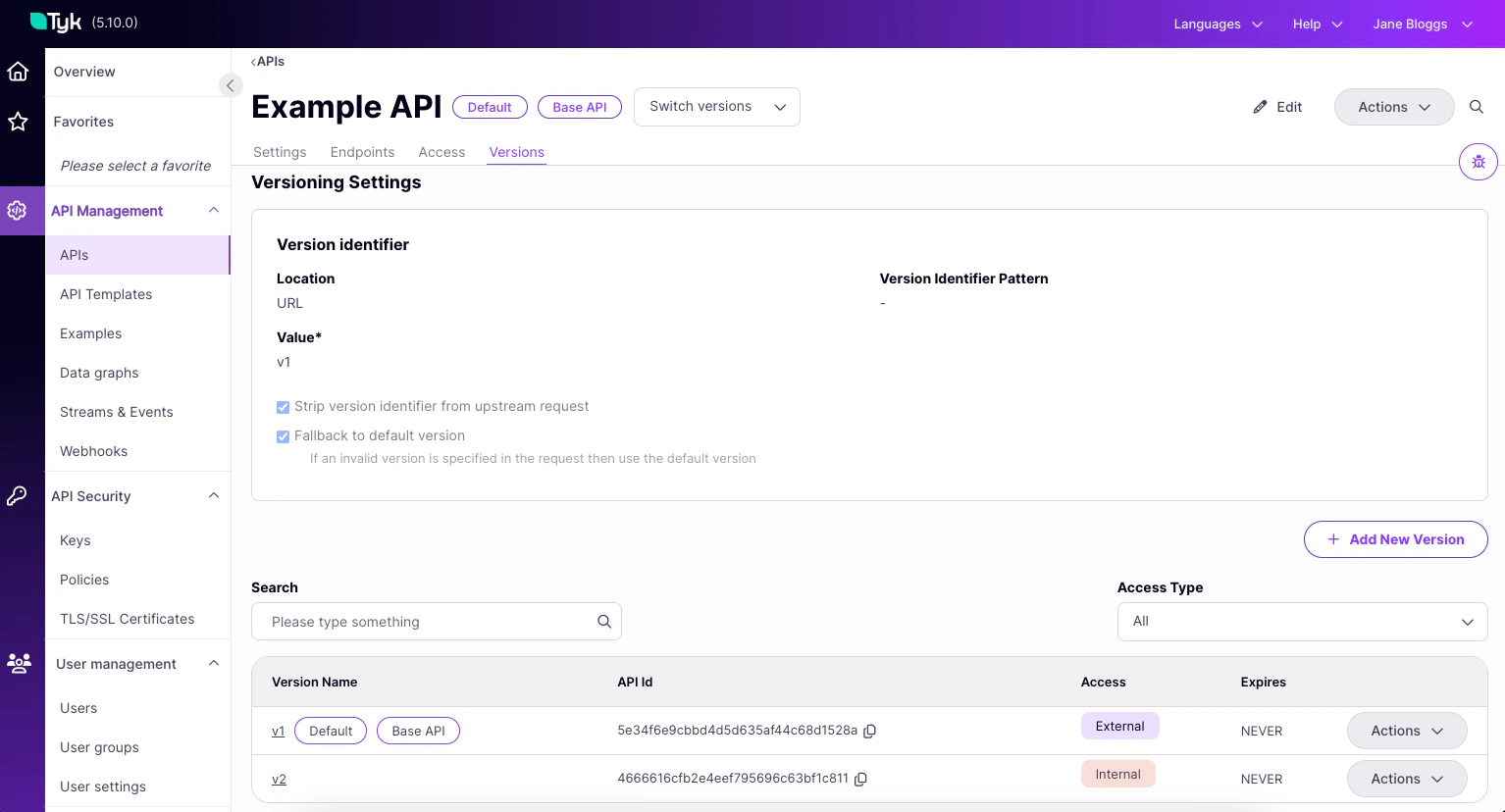
- You can see the versioning metadata
- enter Edit mode to make changes
- note that the common metadata can only be edited from the base API.
- You can see a list of all versions for the API and, from the Actions menu:
- go directly to that version
- delete that version
- set the default version
Change the Base API
Available in the Tyk Dashboard from Tyk 5.12.0
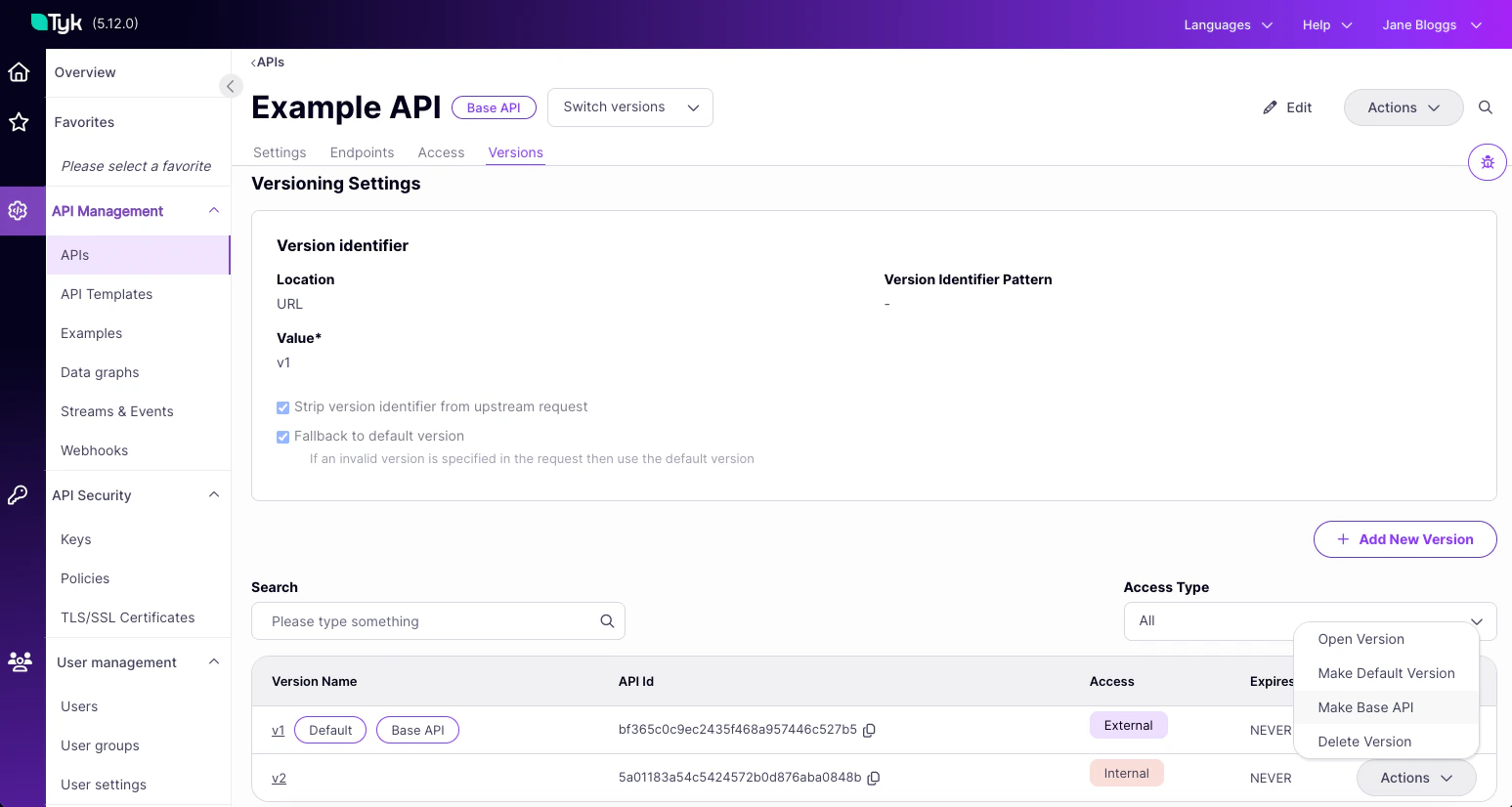
- Open the three-dot menu for the child version that you want to promote
- Select Make Base API
- Be sure to check the listen path and visibility of the new and previous base API versions